1
out of
1
found this helpful.
You can install the Teams Desktop client on Windows and MacOS computers.
We recommend installing the full Microsoft365 Office suite altogether, including Teams, Word, Excel, PowerPoint, etc.
How to get Teams for desktop:
-
Go to https://teams.microsoft.com/downloads
-
Click the Download Teams button to download the Teams installer.
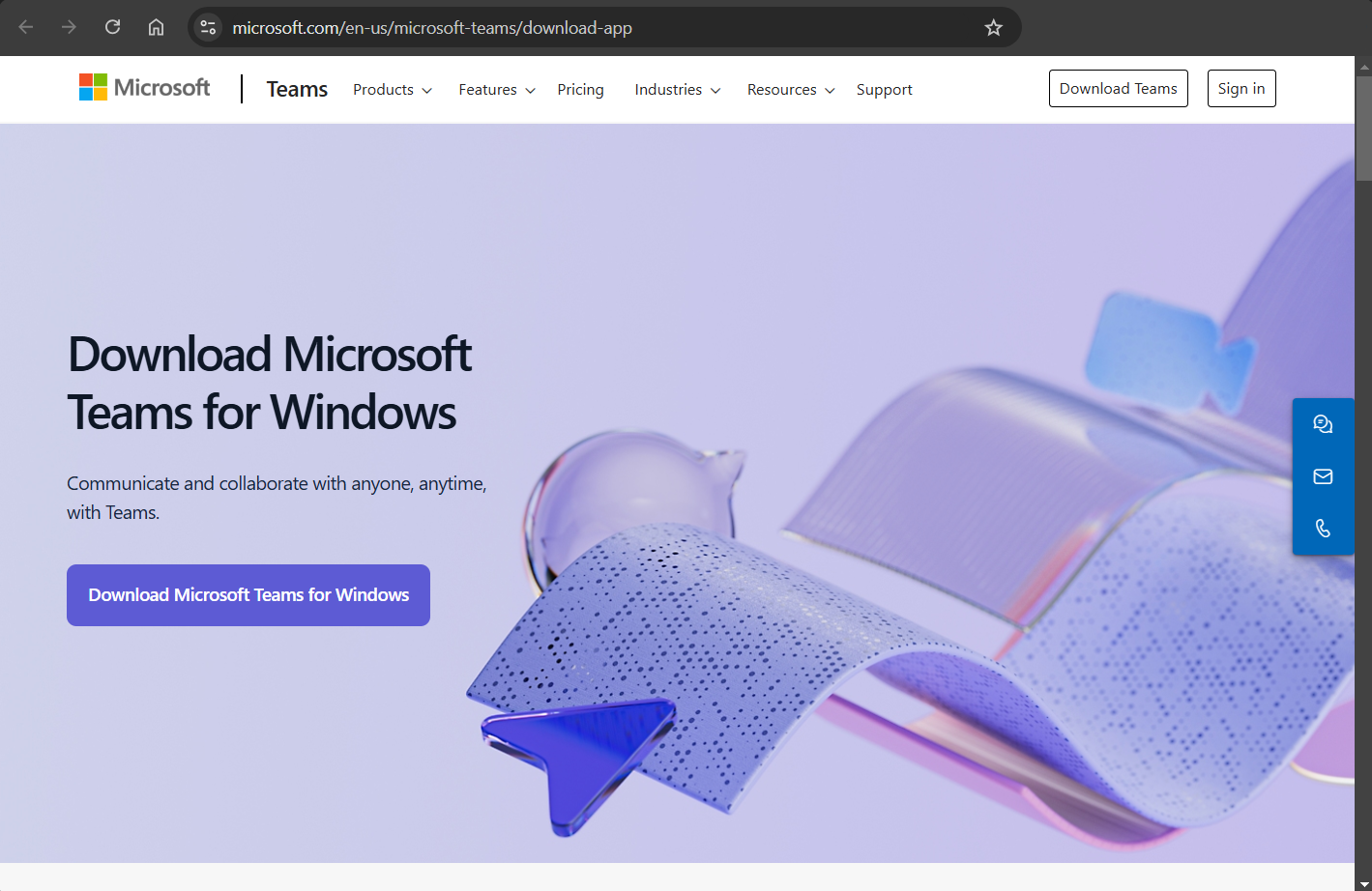
- Run the installer to install Teams for Desktop
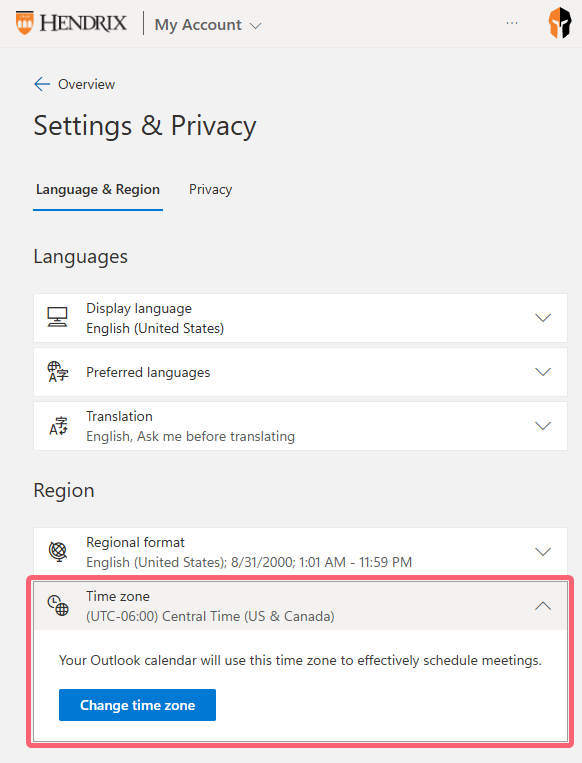
Review Time zone for Microsoft Account
We recommend that you verify that your time zone in Microsoft 365 reflects your current region so that meeting's scheduled in Team's will be displayed at the appropriate time on your calendar.
If you travel, please ensure this setting is correct so you can stay in sync with the rest of the Campus community.
- Head to https://myaccount.microsoft.com/settingsandprivacy/language
- You may be prompted to login. If so, this will be your Hendrix email and credentials.
-
Under Region – Review your time zone and make sure it is set to Central Time.