0
out of
1
found this helpful.
Microsoft Forms can be used for a variety of purposes in integration with Teams. This article will give an overview of the many different types of forms that are able to be created. Signing in at https://forms.office.com/ with your Hendrix account will allow you to access your Forms.
Accessing Forms
1. You can get to forms by navigating from your apps drawer on Microsoft 365
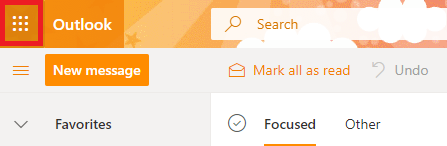
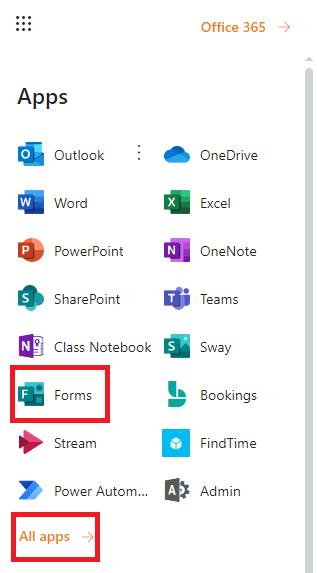
Select Forms from the drop down menu, if Forms is not in the original list, select All Apps and all your available 365 apps will be displayed
Forms can also be reached by typing in https://forms.office.com/. You will need to sign in using your Hendrix Credentials.
Once you've gotten logged in you will see the landing screen to begin creating forms
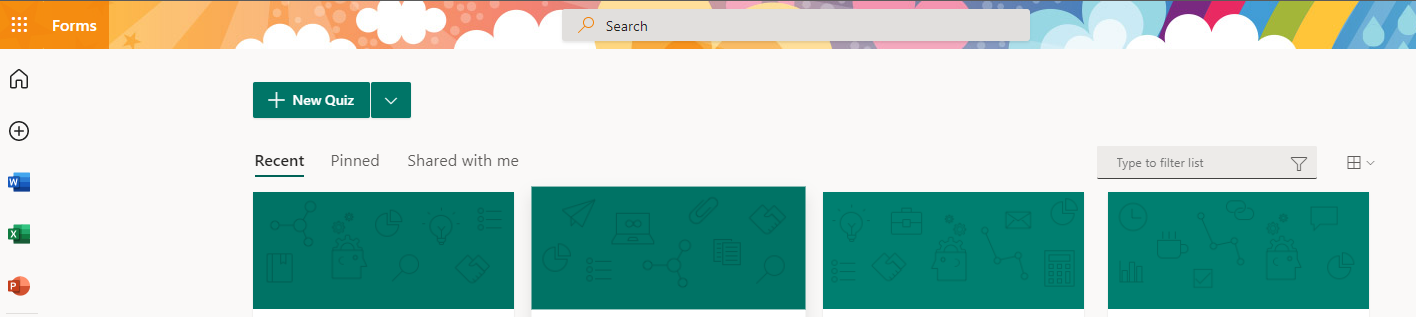
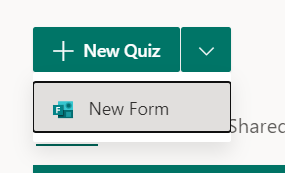
You can select a different form by using the drop down arrow
Form Layout
This example is using New Form, you can title your form and, if you want, a description of it. Form titles can have up to 90 characters. Descriptions can have up to 1,000 characters. Forms are automatically saved as you create them, this form can ask questions without assigning points.
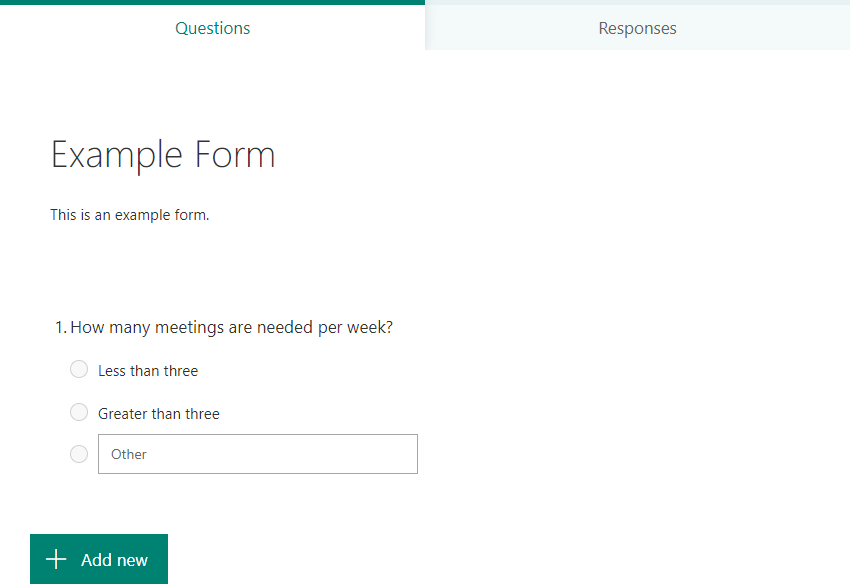
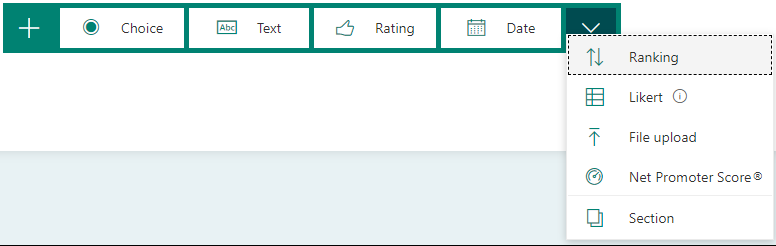
Many different types of questions can be added.
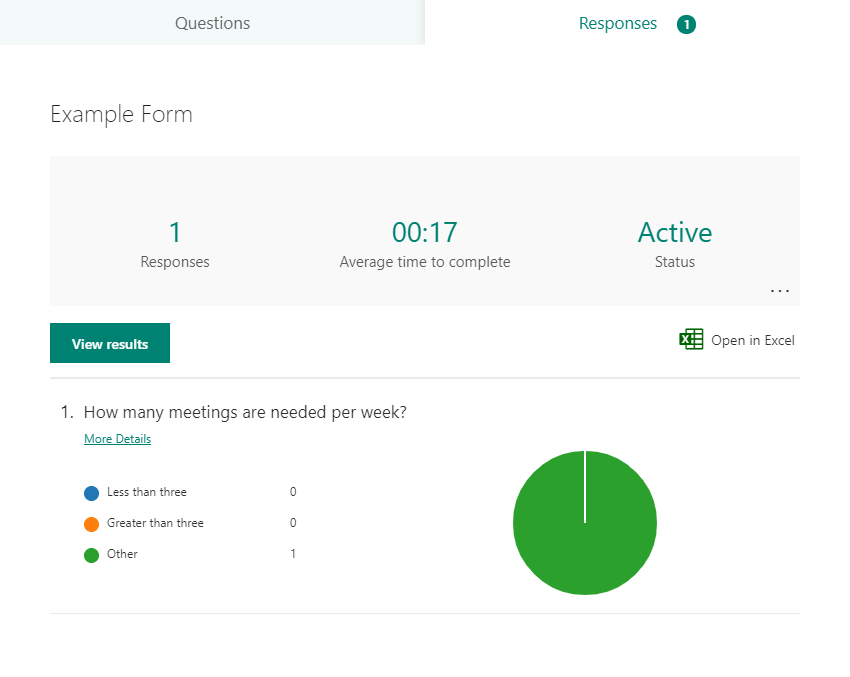
Clicking the Responses tab will allow you to see the results.
Clicking the View results button will allow you to see more detail, including who responded with what.
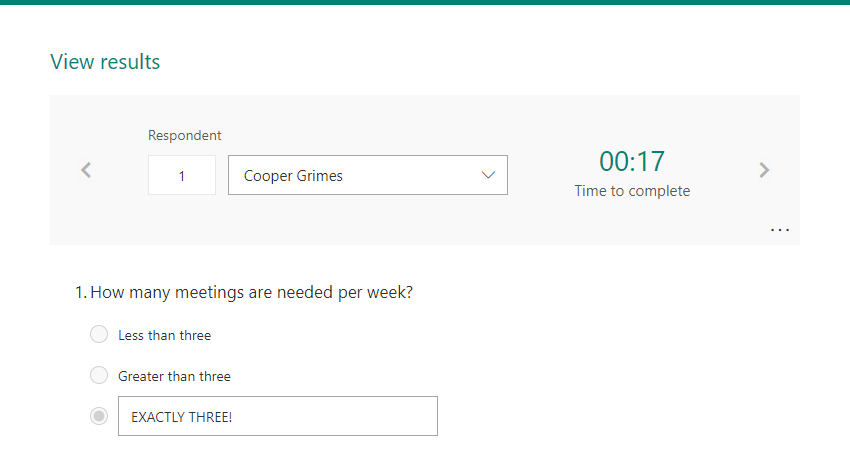
An anonymous form can be created so that not even the creator can see who responded. For more information about creating anonymous forms, click here.
Quick Poll
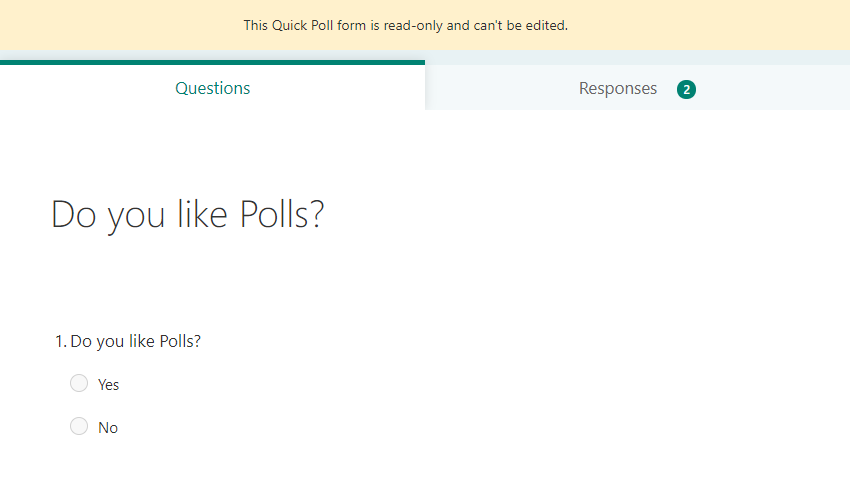
The quick poll is meant for short, one question polls. These forms cannot be edited later or created in advance. They are created by using the forms button while in a team and creating a 'poll' in that team. For more information about creating polls, click here.
Scored Quiz
Quizzes are similar to basic forms, except their questions have correct answers and point values associated with them.
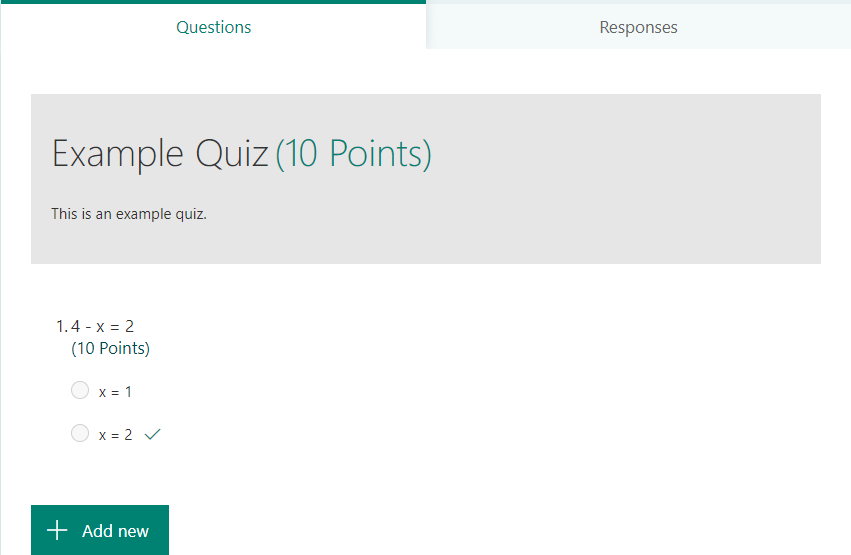
When creating a quiz question, clicking the check mark next to an answer will designate it as correct. The point value for the question is entered in the text box in the bottom left.
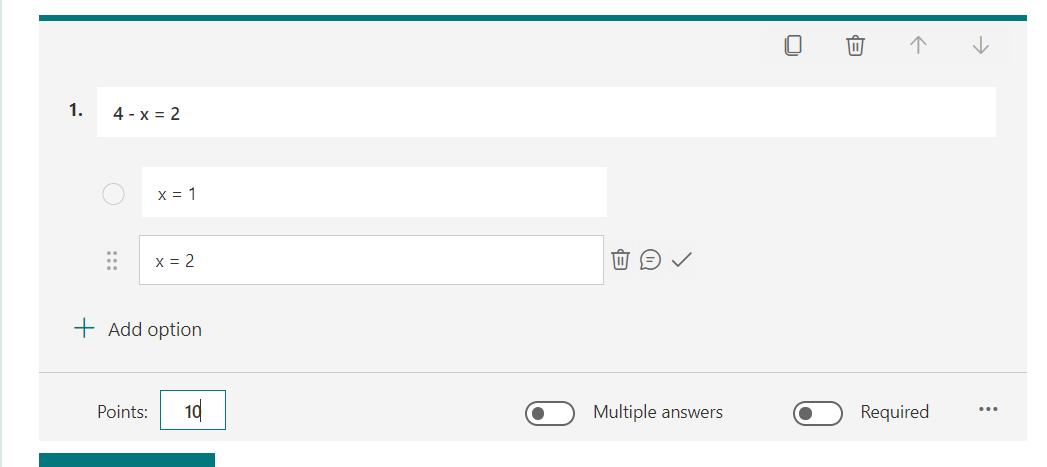
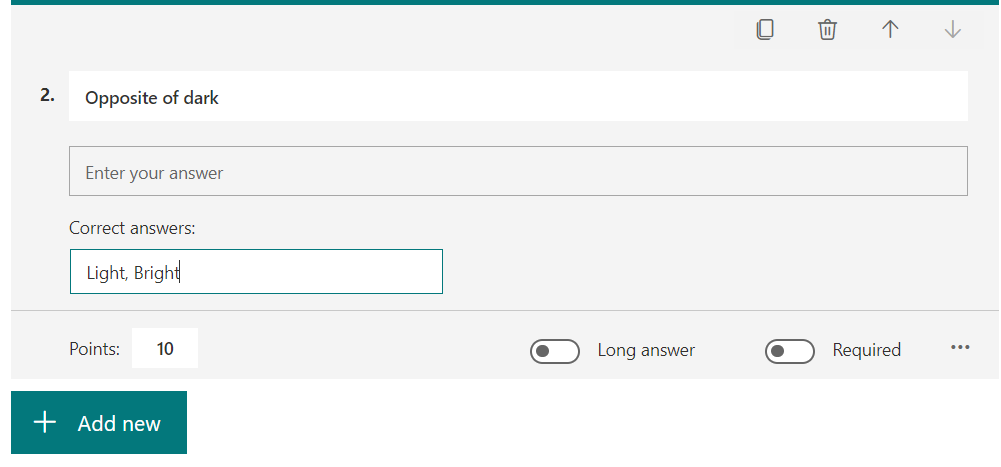
Some types of quiz questions will be automatically scored, such as the Choice question type shown above. Others will need answers to be entered before hand, such as the short Text question type.
Others still, like the Date question type, will require manual entry of points.

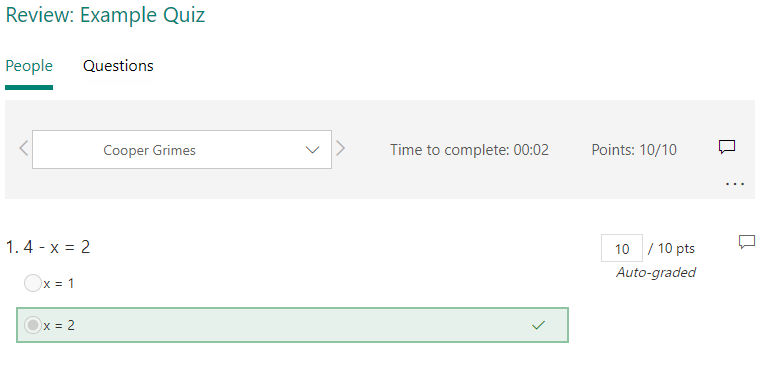
The quiz scores will be available for the quiz's creator to view when they click Review answers the Responses tab.
Integration with Teams
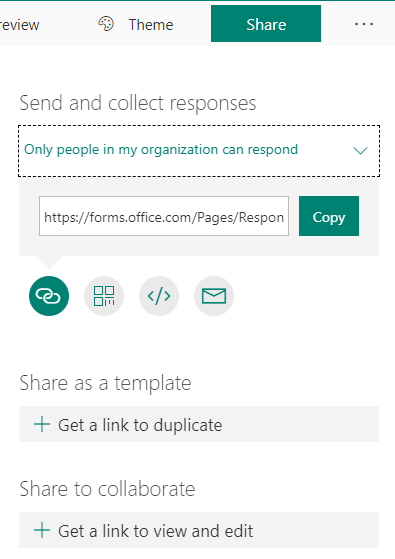
Clicking Share in the top right of the window when viewing your Form will generate a link which can be used by others to take your Form. Note: By default, only one response can be submitted per person and only people from Hendrix will be able to respond.
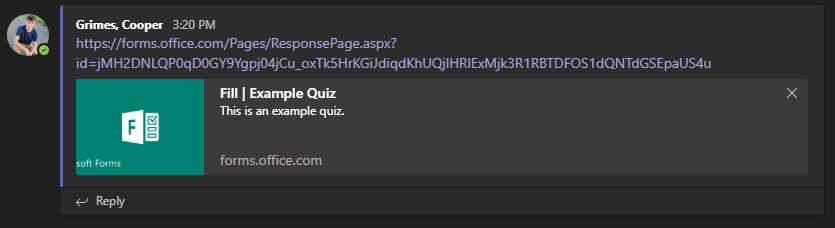
This link can be shared in a Teams channel.
A poll is created when the Forms button is pressed in a Teams channel.

Creating Assignments and Quizzes in teams creates Forms which can be viewed and graded in teams.
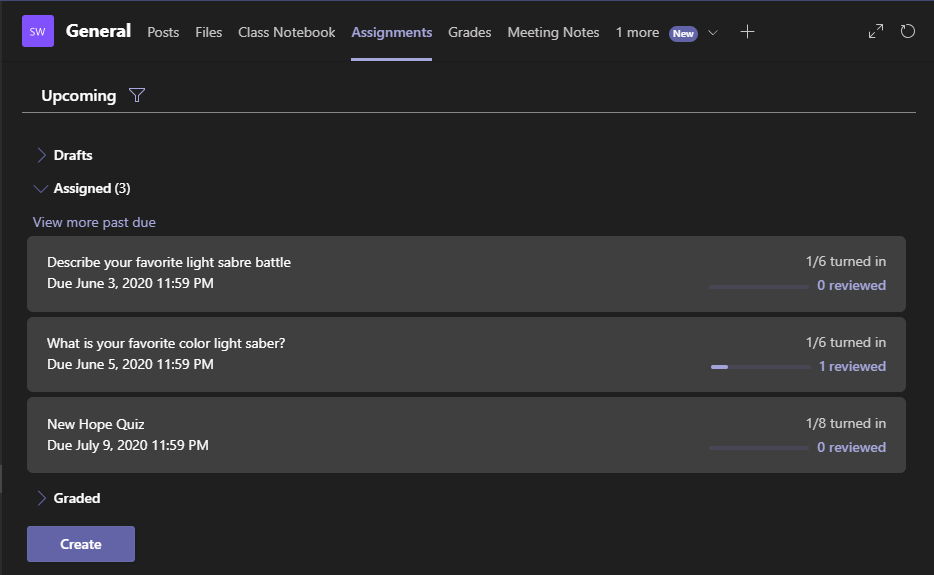
For more information on creating quizzes and assignments, try browsing some of the other articles in the Assignments and Quizzes section of our site.
Creating a quiz
Creating an assignment