This article has not yet been rated.
To view all of your Teams, you have 2 view options, Grid or List.
Grid View
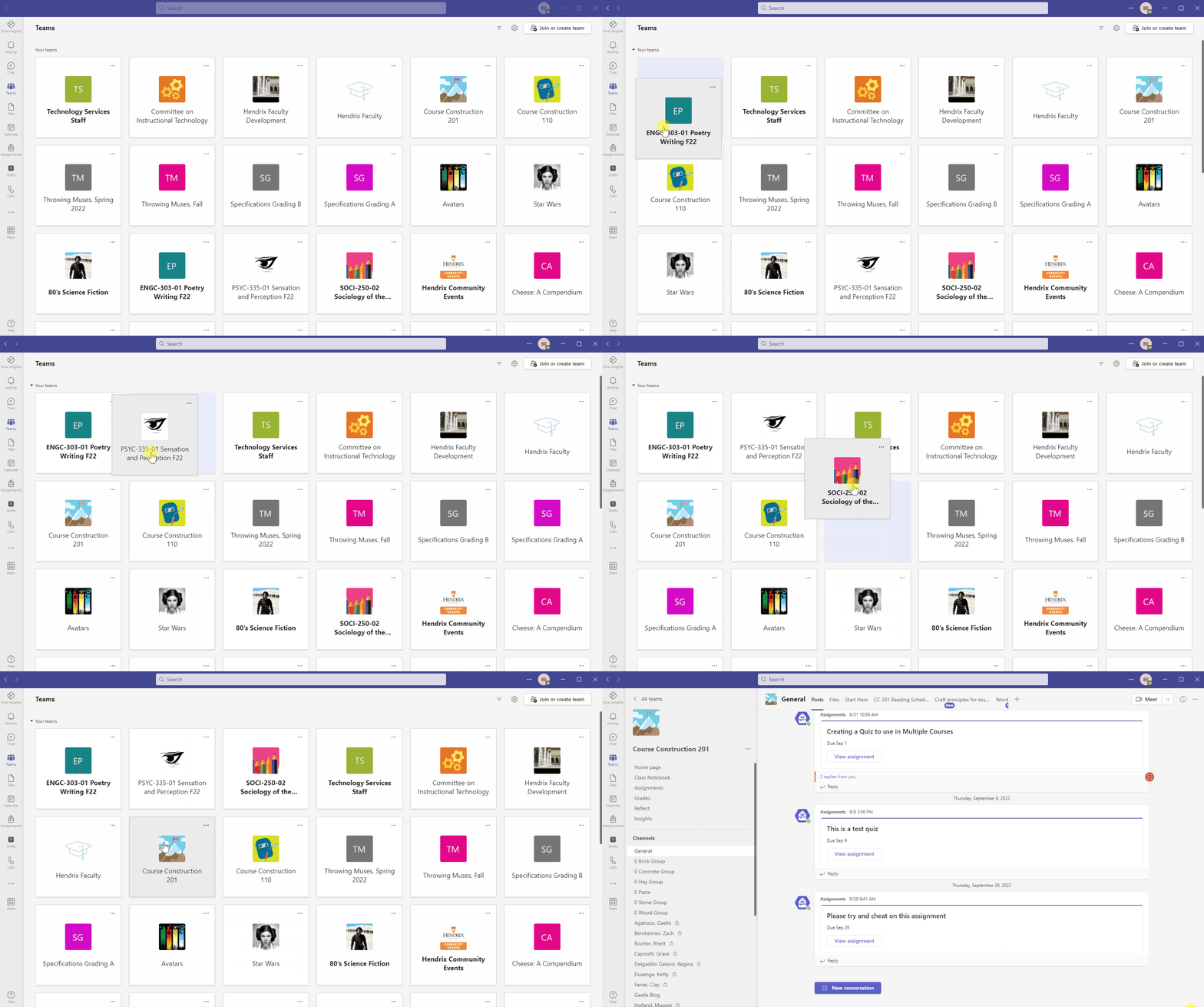
Click on the Teams icon on the Homerow until you see all of your Teams in a grid, as below. Scroll up and down to view all the Teams you are currently a Member of. Your classes will automatically be included here when your professor activates your class Team. You can click-n-drag the square so that your more important Teams, such as your courses, are at the top. Then click on the Team you want to visit.
List View
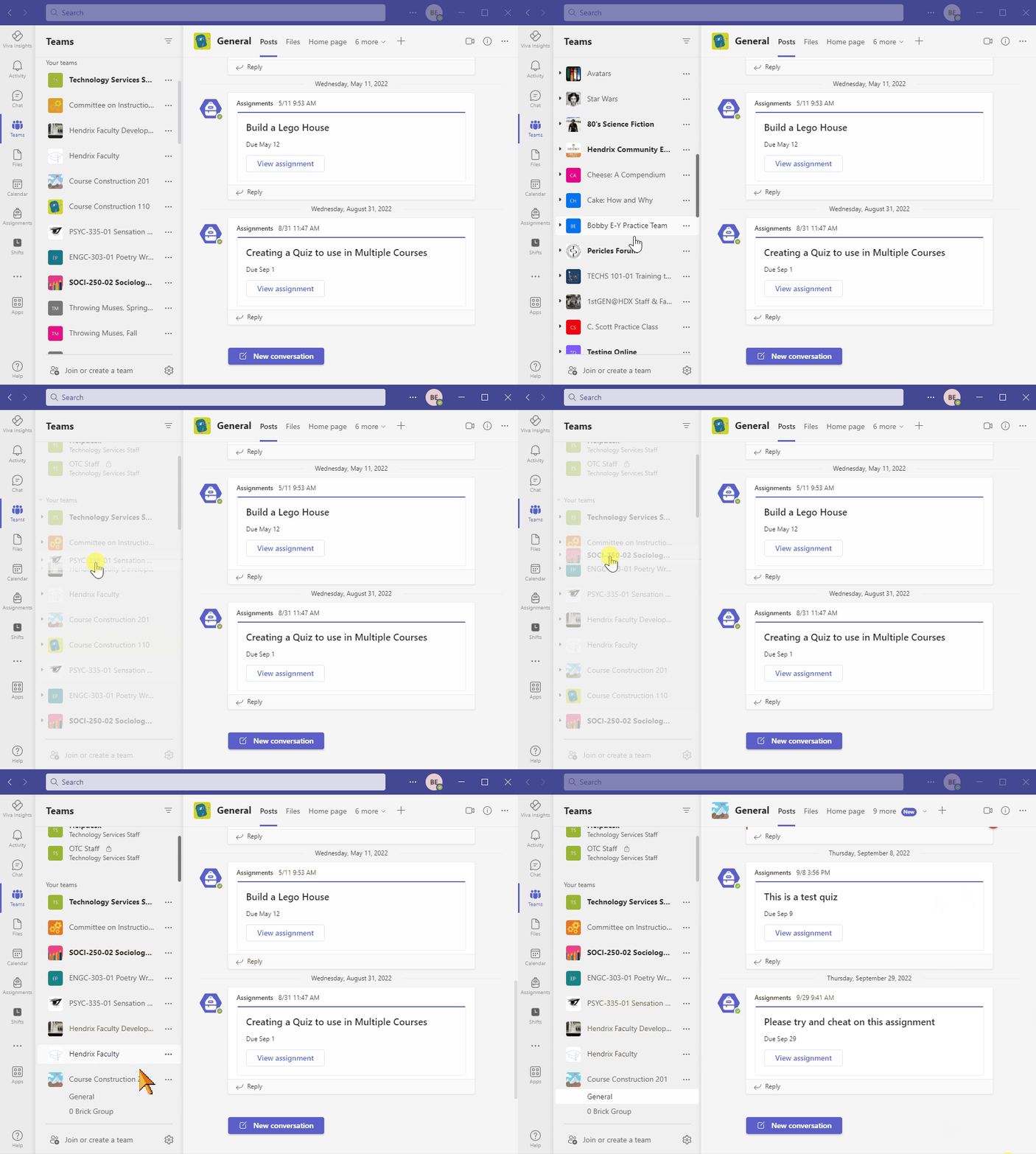
All of your Teams are in a list on the left. Scroll up and down to view all. Click on a Team name to see the list of that Team's channels. Click on a channel to visit the team.
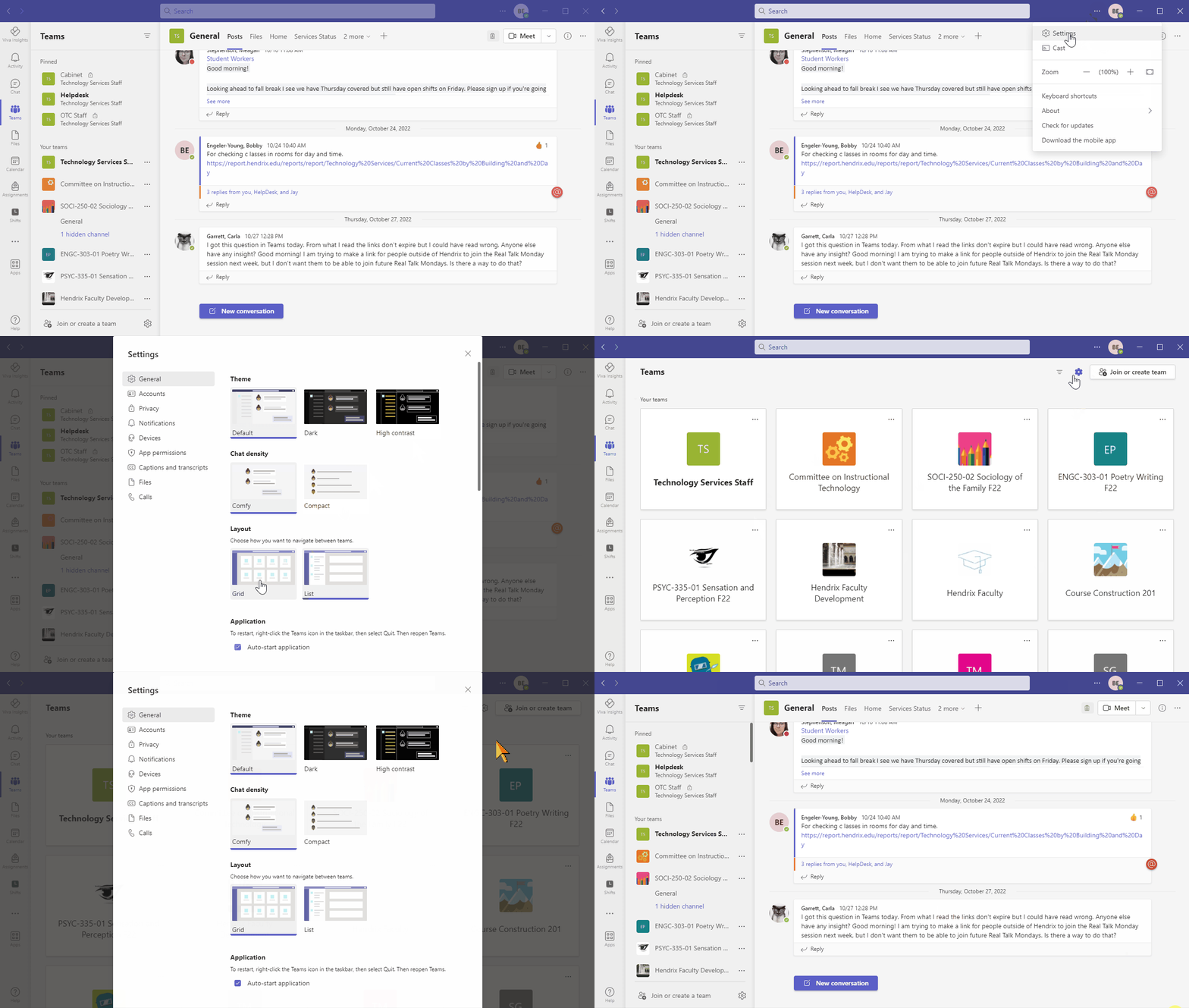
To change view...
Compare Views
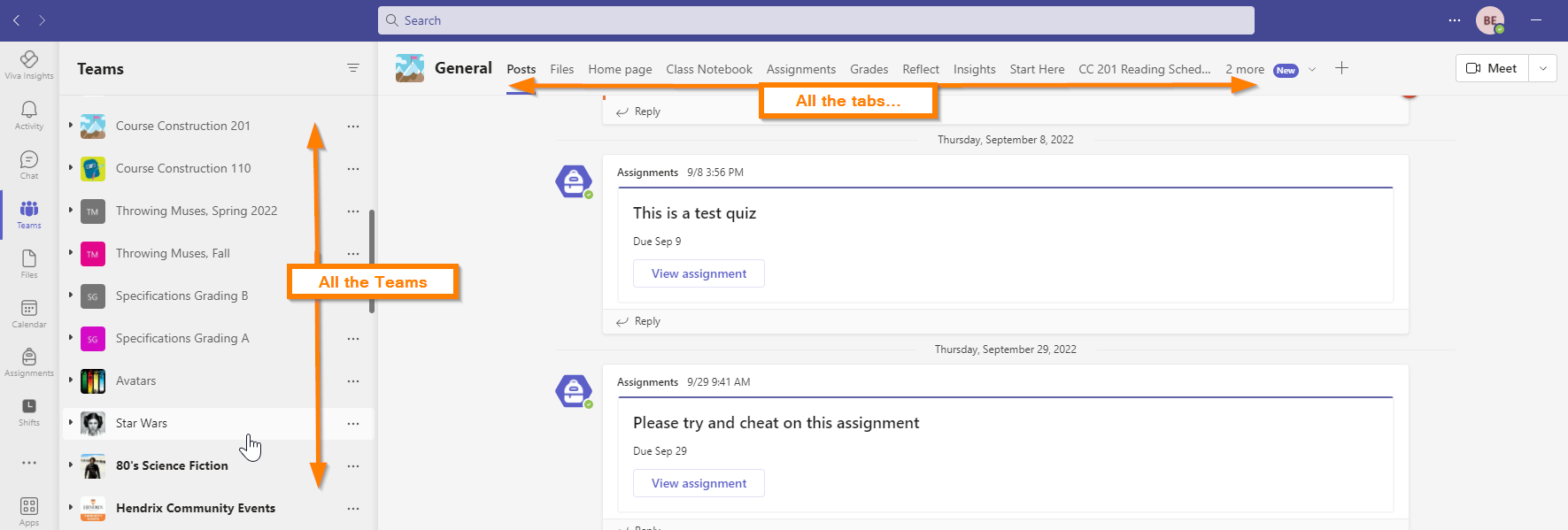
- In List view all of your Teams are visible in the left column, but there are a lot of tabs to navigate in the top row.
- In Grid view, some tabs are stacked in the left column so the top row is less crowded, but to navigate to different Teams, you have to click Teams to return to the full grid.
- Generally speaking, List is preferable for navigating Team-to-Team, and Grid is preferable for navigating within a Team.
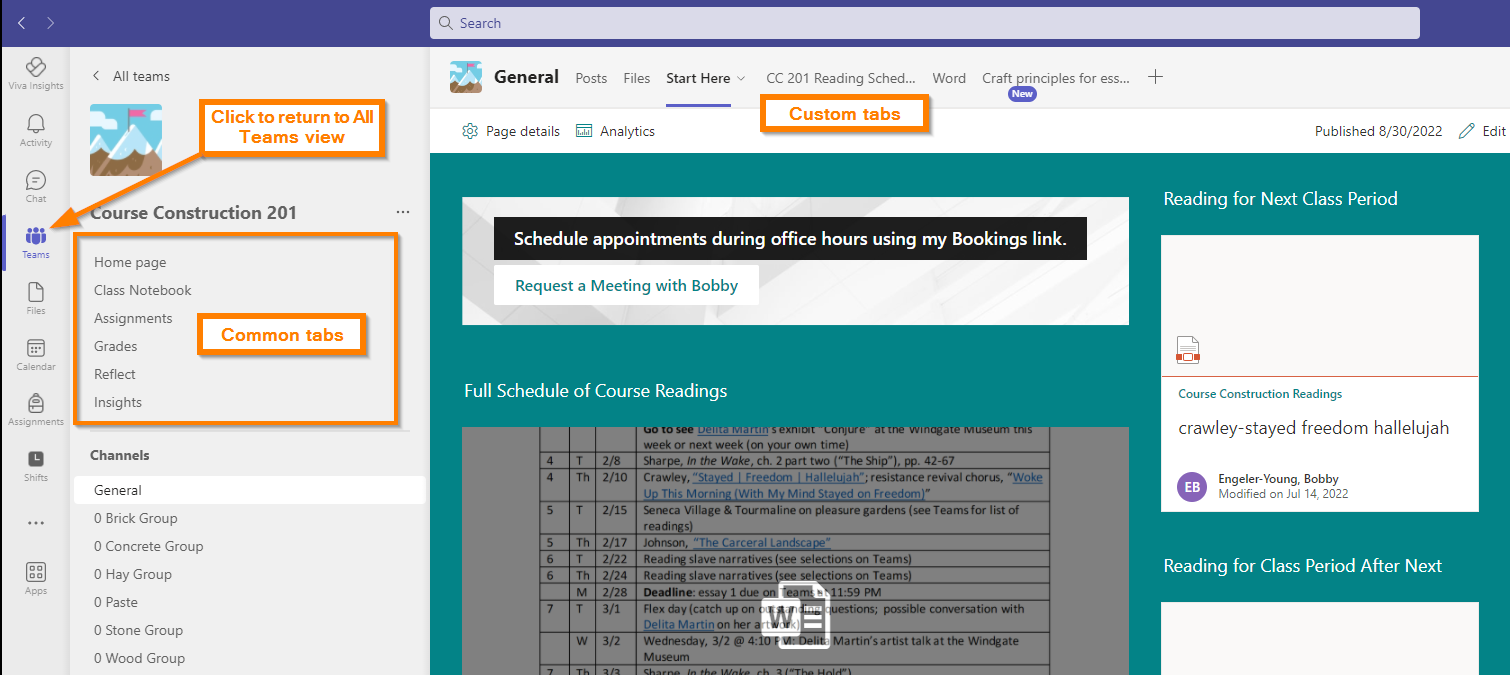
Select your view based on your navigational preferences. Professors may find it helpful to show your students which view you use, so that they understand your navigational directions. Likewise, students may want to inquire which view a professor is using in reference to their course.